Shader Layer
Shader Layer uses SkSL (Skia Shader Language) to allow creating custom shader effects. In general the Environment that Origami provides for this shader is similar to ShaderToy. It only allows a Fragment Shader.
The Shader Layer behaves like a canvas with a fixed size that is the whole surface the Shader has available to work with.
Editing a Shader code
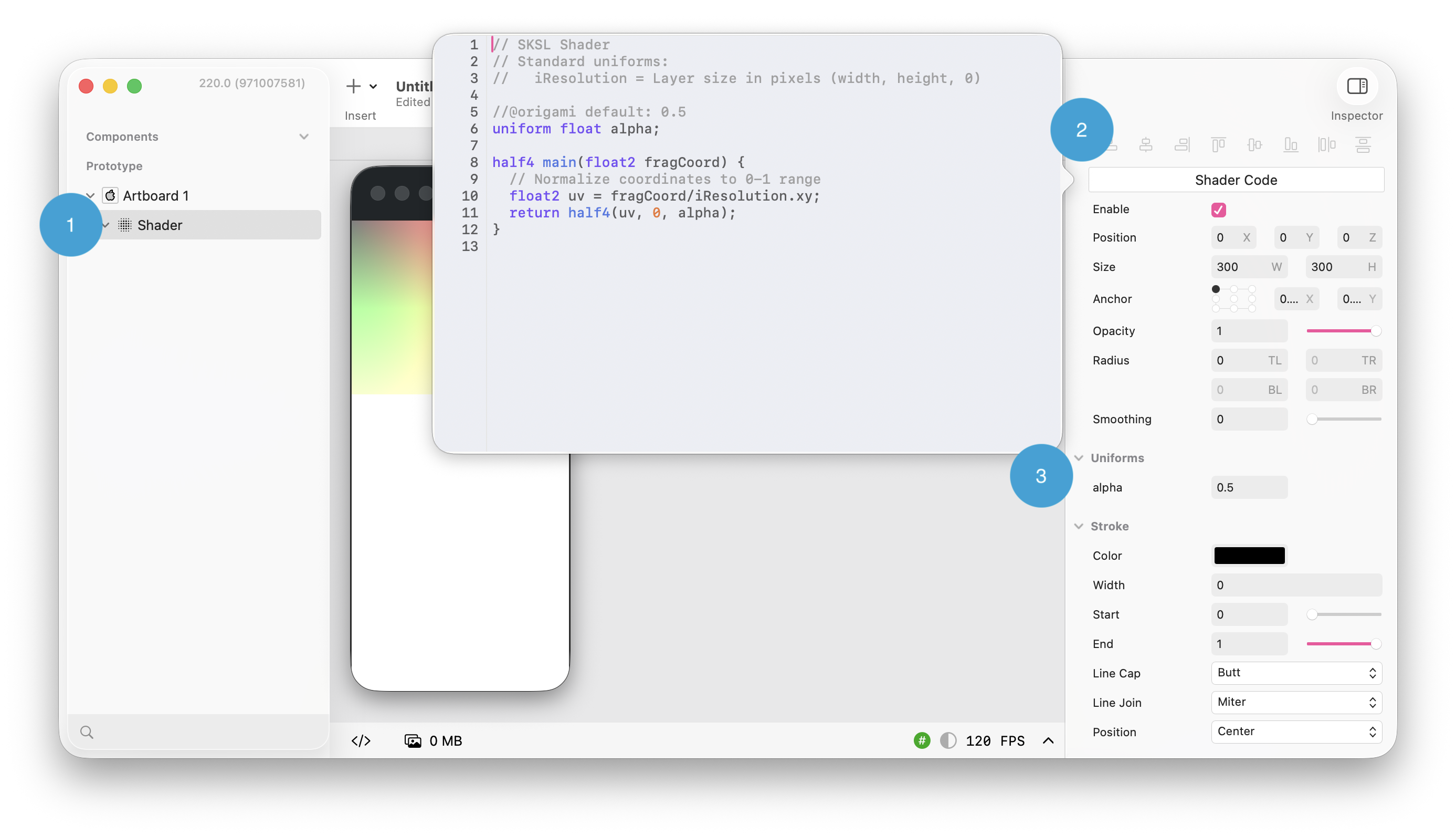
1.
Shader Layer in the Layer hierarchy.
2.
Button to access to the Shader Code Editor UI.
3.
Uniforms automatically get exposed as input properties on the layer, so they can be controlled by the patch graph
The initial Shader Layer comes with a very simple Shader that draws a gradient. But in general the “Shader Code” button is your entrypoint to modify the shader code.
If you have a syntax error, the Editor will show you the error and the line that originates the error so you would be able to know what to fix.
Applying shaders onto layer hierarchies
While a Shader Layer looks like a container. It doesn’t need a child layer hierarchy to function. There’s a wide range of shaders that are just “Generative”. As the example of a gradient. In fact most shaders that you would find in ShaderToy or similar tools are like that.
However there are times where you would want to apply an effect into a layer hierarchy. For example a grayscale shader on some of your layers. To do that, the Shader Layer allows you to add layers inside, this layers will become a pixel texture (see (Sampling Textures)
It doesn’t matter how many layers you add, the sampler will be the full size of the Shader Layer that contains whatever is visible for that Layer. Then is up to the Shader code to either draw that directly or apply any effect.
This pattern will also allow you to “Compose” For example having separate shaders for Grayscale and for Polka dot, but applying both of them to the same layer hierarchy:
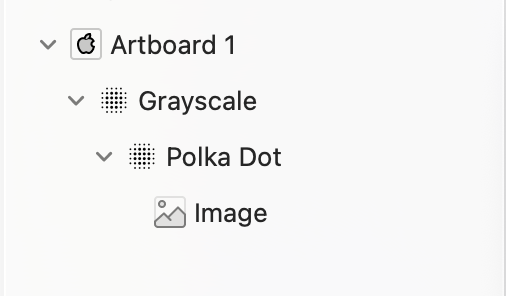
This is not the most effective way performance wise. But it also depends on the shader and the layer hierarchy itself (for example a video that requires a redraw every frame)
Pixels & Coordinates.
The main coordinates that are passed to the fragment shader are in pixels. A common way to get the UV normalized coordinates would be:
  // Normalize coordinates to 0-1 range
  float2 uv = fragCoord/iResolution.xy;
Origami’s coordinate system is Top-Left (0,0) Sampling of textures must be done in local coordinates. which means pixels. DO NOT use the uv normalized coordinates for that. (or make sure to convert them back) Origami in general works in Points, while the shader works in pixels. Depending on the screen scale of the device there might be some consideration of this fact.
SkSL
A basic SKSL shader consists of a main function that takes in vector2 coordinates and produces an output color. The main function is the entry point for the shader.
half4 main(vec2 coords) { // coords are not normalized
    return half4(1.0, 0.0, 0.0, 1.0); // Returns a red color
}
#Uniforms and Types:
Uniforms allow you to pass arbitrary data to the shader from Origami. They are declared at the top of the shader code and can be of various types, such as float, vec2, half4, etc.
Each of this uniforms will create an Input Port in Origami so it can be controlled by Origami.
The Supported types and their map into Origami:
| SkSL | Origami |
|---|---|
| float | FLOAT |
| half | FLOAT |
| int | INTEGER |
| float2 | VEC2 |
| vec2 | VEC2 |
| half2 | VEC2 |
| int2 | VEC2 |
| float3 | VEC3 |
| vec3 | VEC3 |
| half3 | VEC3 |
| int3 | VEC3 |
| float4 | VEC4 |
| vec4 | VEC4 |
| half4 | VEC4 |
| int4 | VEC4 |
| float2x2 | UNSTRUCTURED |
| float2x2 | UNSTRUCTURED |
| float2x2 | UNSTRUCTURED |
| half2x2 | UNSTRUCTURED |
| half3x3 | UNSTRUCTURED |
shader, colorFilter and blender are not supported types. Do not create uniforms with them.
There’s a special type for color. If declared like:
layout(color) uniform half4 iColor;
It can be any of half4, vec4 or float4.
It will be of type Color in Origami. If the shader requires a color to be passed this is the preferred way of passing it, it is not just more idiomatic but also uses the right color space instead of just 4 numbers.
Injected Uniforms
Similar to ShaderToy there are already some existing uniforms that are injected in the shader code:
float3 iResolution. It’s the Layer size in pixels (width, height, 0)uniform shader iImage1. It’s the texture containing the Layer child of the ShaderLayer. This texture it’s the same size in pixels as iResolution.
Sampling Textures
One of the main differences between SKSL and other shading languages is how textures are sampled. In SKSL, you use the eval function on shader variable type. Sampling is done in local coordinates. Which means they are in pixels.
half4 main(vec2 coords) {
    return iImage1.eval(coords);
}
Origami Annotations
Uniforms by default just get initialized with a 0 value or whatever is the closest depending on its data type. However there are times where that value just produces no result for the Shader or “incorrect” results.
In the default Shader Language there’s no way to initialize a Uniform with a value that makes more sense to start with.
Given that limitation. Origami added a way to pass a default initializer value through a specific comment annotation:
 //@origami default: 0.04
 uniform float variable;
The format as seen is easy, just add a comment line above your uniform declaration that starts with @origami and set the default value.
In the future we plan to add more properties to this comment to make it easier to work with Origami’s ergonomics.