AI Agents (MCP)
Origami Studio includes an MCP server, so AI agents such as Claude Code and Codex can work with your open documents. Ask an agent how a prototype works, have it take you to the patches it’s talking about, or let it make edits for you.
Setting Up
Open Origami Studio > Settings… and select the AI tab. The MCP server is on by default; use the Allow AI agents to use Origami Studio switch to turn it off or on.
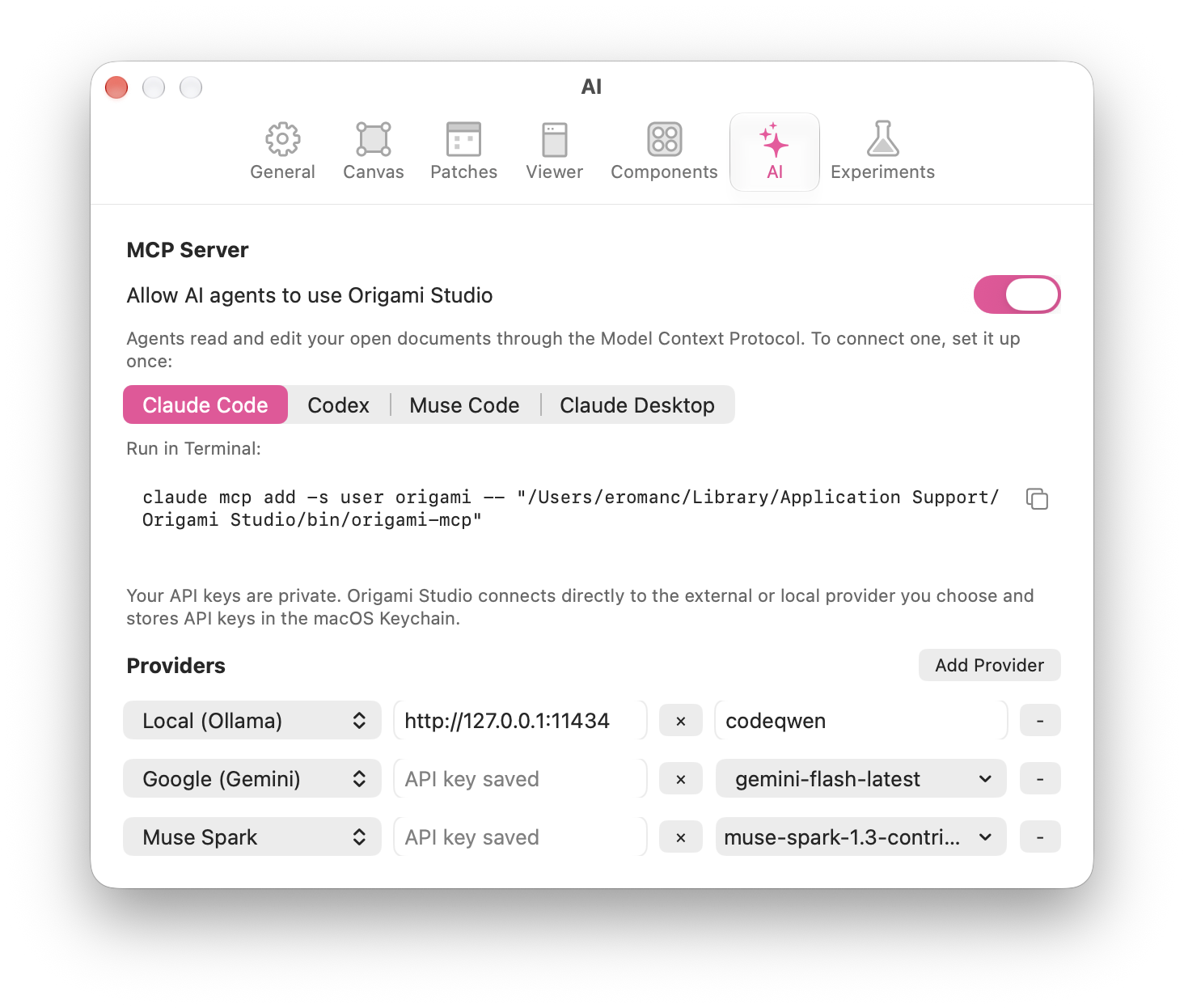
Below the switch, pick your agent to see how to connect it, with a button to copy the command. You only need to set up each agent once.
Claude Code
Run in Terminal:
claude mcp add -s user origami -- "$HOME/Library/Application Support/Origami Studio/bin/origami-mcp"Codex
Run in Terminal:
codex mcp add origami -- "$HOME/Library/Application Support/Origami Studio/bin/origami-mcp"Settings also shows the setup for Muse Code and Claude Desktop.
What Agents Can Do
Once connected, just ask in your own words. Agents can:
- Explain prototypes. Read your documents and components, and answer questions about how they work.
- Navigate. See where you are in the editor, and take you to the patches and layers they mention.
- Check the running prototype. Read live values, logs and Viewer clicks, see the layers the Viewer draws, take a screenshot of the Viewer, or restart the prototype.
- Look up patches. Browse every patch and layer Origami offers, with their ports and documentation.
- Make edits. Add, connect, change and delete patches and layers, organize layers, edit JavaScript and shaders, and create and edit components.
Every edit an agent makes is a single undo step, so you can undo it with ⌘Z like any other change.
Tools
These are the tools agents use. You don’t need to call them yourself, but knowing them helps when you ask for something specific.
| Tool | What it does |
|---|---|
| list_documents | Lists open documents and the ids the other tools use. |
| read | Reads a document or one of its components. |
| list_components | Lists a document’s components. |
| changes_since | Returns what changed since an earlier read. |
| read_source | Returns the code of a JavaScript patch or Shader layer. |
| describe | Describes patches and layers, with their ports. |
| editor_state | Returns where you are and what’s selected. |
| show | Takes you to patches and layers. |
| runtime_values | Returns live values from the running prototype. |
| logs | Returns logs, console output and Viewer clicks. |
| render_tree | Returns the layers the Viewer draws. |
| viewer_image | Returns a screenshot of the Viewer. |
| restart_prototype | Restarts the prototype. |
| edit | Makes changes, applied as one undo step. |
Command Line
The same tools work from Terminal, which is handy for scripts or for trying them yourself. Add an alias to your shell profile:
alias origami-mcp='"$HOME/Library/Application Support/Origami Studio/bin/origami-mcp"'| Command | What it does |
|---|---|
| help | Shows the available commands. |
| tools | Lists every tool and its arguments. |
| call <tool> [<json>] | Calls one tool and prints the result. |
| send <message> | Sends one raw JSON-RPC message. |
| run <file> | Runs one request per line from a file. |
Example
Find the document id of an open document, then read it:
origami-mcp call list_documents
origami-mcp call read '{"document": "w6w55"}'
Arguments are JSON. Edits pass the revision from the last read, so a change never overwrites something newer. This sets the opacity of layer 514a8:
origami-mcp call edit '{
  "document": "w6w55",
  "revision": 12,
  "operations": [
    { "op": "set", "id": "514a8", "inputs": { "Opacity": 0.5 } }
  ]
}'
Troubleshooting
If an agent can’t find Origami Studio, make sure Origami Studio is open and the MCP server is on in Settings > AI, then restart your agent.